





Mordark
Community Developer
- Joined
- Mar 31, 2014
- Messages
- 291
- Reaction score
- 4
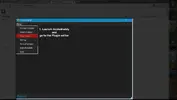
1. Launch ArcheBuddy and go to the Plugin editor (under Menu)

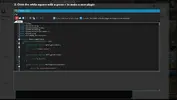
2. Click the white square with a green + to make a new plugin
3. This area with the numbers is where the code of each plugin goes
If you are pasting plugin code here
delete all of the code that is here by default before you do so
P.S. Ctrl A can be used to select all of the code at once
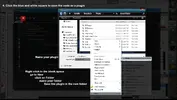
4. Click the blue and white square to save the code as a plugin
Name your plugin
Right click in the blank space
go to New
click on Folder
name your folder
Save the plugin in the new folder
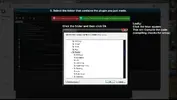
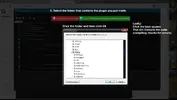
5. Click the blue gear to select the folder that contains the plugin you just made.
Click the folder and then click Ok
Lastly:
Click the blue square
This will Compile the code
(compiling checks for errors)
How to run plugins once you have started the game using the Account Manager:
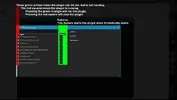
6. The green arrows mean the plugin can be ran, but is not running.
The red squares mean the plugin is running.
Pressing the green triangle will run the plugin.
Pressing the red square will stop the plugin.
Autorun:
This feature starts the plugin when Archebuddy starts
2. Click the white square with a green + to make a new plugin
3. This area with the numbers is where the code of each plugin goes
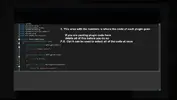
If you are pasting plugin code here
delete all of the code that is here by default before you do so
P.S. Ctrl A can be used to select all of the code at once
4. Click the blue and white square to save the code as a plugin
Name your plugin
Right click in the blank space
go to New
click on Folder
name your folder
Save the plugin in the new folder
5. Click the blue gear to select the folder that contains the plugin you just made.
Click the folder and then click Ok
Lastly:
Click the blue square
This will Compile the code
(compiling checks for errors)
How to run plugins once you have started the game using the Account Manager:
6. The green arrows mean the plugin can be ran, but is not running.
The red squares mean the plugin is running.
Pressing the green triangle will run the plugin.
Pressing the red square will stop the plugin.
Autorun:
This feature starts the plugin when Archebuddy starts